




How to Test Network Throughput with iperf3 on Linux VPS
Learning how to correctly test network throughput with iperf3 is the professional way to benchmark your server’s bandwidth performance. Unlike standard speed tests that measure internet speed, iperf3 measures the maximum bandwidth capacity between two specific points (e.g., your local computer and your VPS), helping you identify packet loss, jitter, and bottlenecks.
Stop worrying about network limits. Experience raw power with our high-speed VPS infrastructure.
Check WPressly VPS Plans
What is iperf3?
iperf3 is a command-line tool that performs active traffic measurements. It works on a client-server model: you run it in “Server Mode” on one machine (your VPS) and in “Client Mode” on another (your PC or another server).
Step 1: Install iperf3
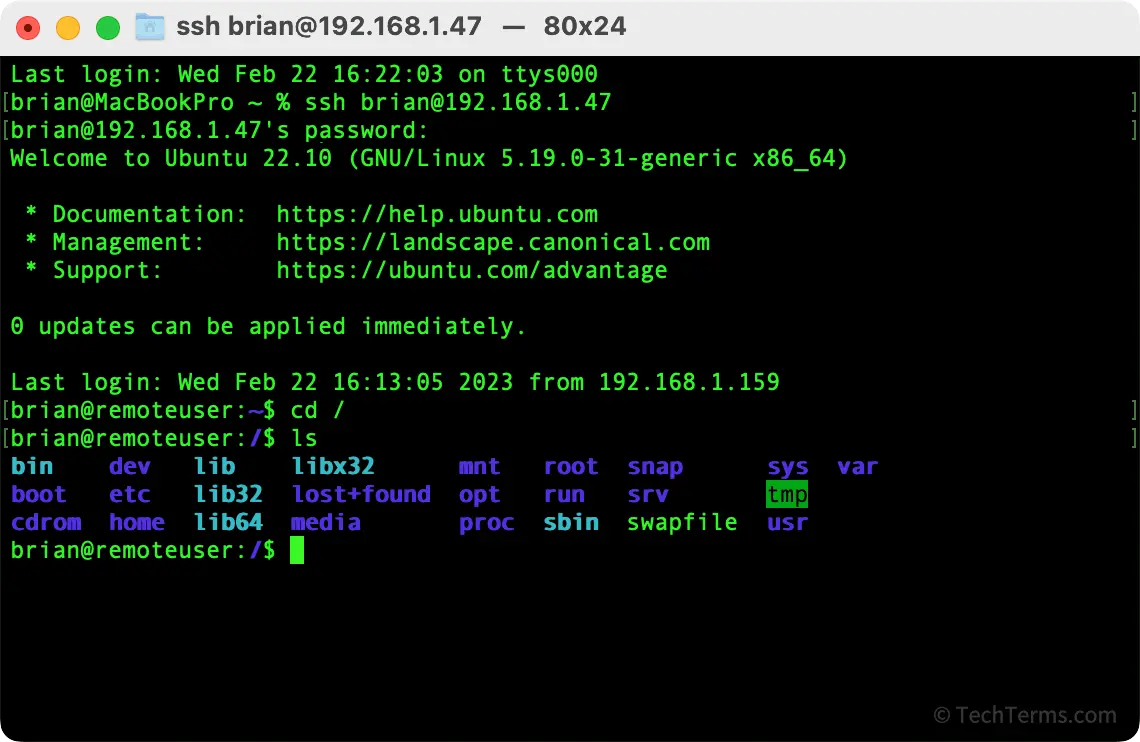
First, you need to install the tool on both the sending and receiving machines. Access your server via SSH and run:
For Ubuntu/Debian:
sudo apt-get update
sudo apt-get install iperf3
For CentOS/AlmaLinux:
sudo yum install iperf3Step 2: Run iperf3 in Server Mode
On your remote VPS (the machine you want to test), start the listener process. By default, it listens on port 5201:
iperf3 -sNote: Make sure port 5201 is open in your firewall.
Step 3: Run the Test from the Client
Now, on your local machine (or the second server), run the command connecting to your VPS IP address:
iperf3 -c YOUR_VPS_IP_ADDRESSYou will see a real-time report of the data transfer, bandwidth speed (Mbits/sec or Gbits/sec), and transfer size.
Advanced Commands
- Reverse Test (`-R`): By default, the client uploads to the server. Use
-Rto test download speed from the server to the client.iperf3 -c YOUR_VPS_IP -R - UDP Mode (`-u`): Use this to test for packet loss and jitter (crucial for VoIP and gaming).
iperf3 -c YOUR_VPS_IP -u
Conclusion
Using the command line to test network throughput with iperf3 gives you the most accurate picture of your connection quality. It is an indispensable tool for network diagnostics.
Need a network you can trust?
- Premium Linux VPS (1Gbps Ports Available)
- Reliable Web Hosting (99.9% Uptime SLA)