
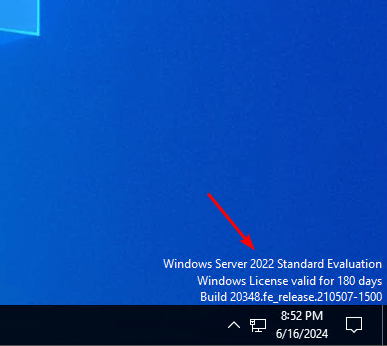




If you are testing a Windows Server environment using an evaluation ISO (Standard or Datacenter), you know that the license typically expires after 180 days. Once expired, the server shuts down hourly, disrupting your work.Extend Windows Server Evaluation Period
The good news is that Microsoft allows you to “rearm” or reset this evaluation period up to 6 times, giving you nearly 3 years of trial usage. In this guide, we will show you exactly how to do it.
Stop worrying about license expiration and hourly shutdowns. Get a fully licensed, high-speed Windows VPS from WPressly today. Reliable performance for your business.
Step 1: Check Your Current License Status
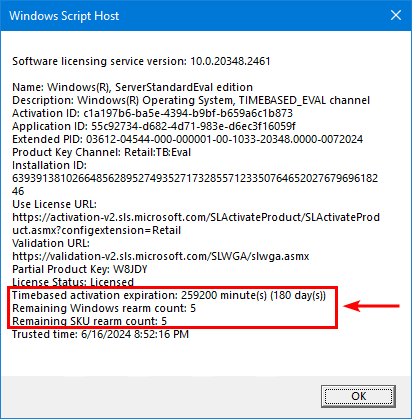
Before extending the period, it is helpful to know how many “rearms” you have left. Windows Server allows a maximum of 6 extensions.
- Open the Command Prompt (CMD) or PowerShell as Administrator.
- Type the following command and hit Enter:
slmgr.vbs /dli
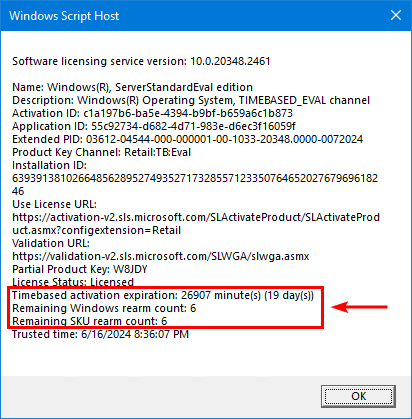
A popup window will appear showing the “Time Remaining” and the “Remaining Windows rearm count”. If the count is greater than 0, you can proceed.
Step 2: Extend the Evaluation Period (Rearm)
To reset the 180-day timer, follow these simple commands:
- In the same Administrator Command Prompt, run:
slmgr.vbs /rearm
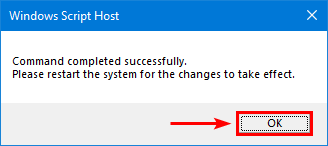
You should see a message stating: “Command completed successfully. Please restart the system for the changes to take effect.”
Step 3: Restart Your Server
The changes won’t apply until the server reboots. You can restart manually or use this command:
shutdown /r /t 0
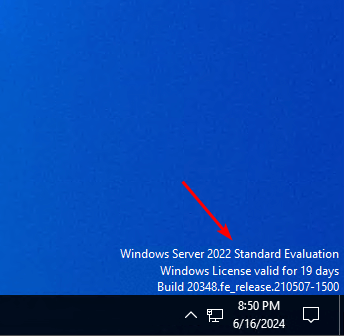
Once the server is back online, the evaluation period will be reset to 180 days.
Why Stick with Evaluation Versions?
While extending the trial is a great temporary fix for labs and testing, it isn’t suitable for production environments due to potential stability issues and lack of official support.
Upgrade to Professional Hosting: At WPressly, we provide premium Virtual Private Servers (VPS) and Dedicated Servers tailored for performance. Whether you are running a high-traffic website or complex applications, we have the infrastructure you need.