
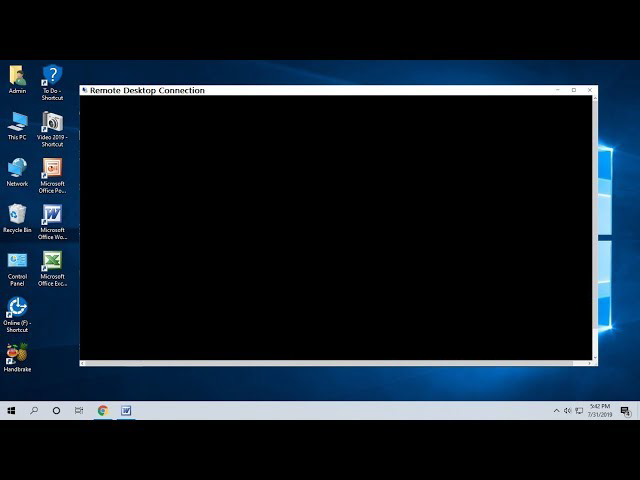




There is nothing more frustrating than logging into your Windows VPS via Remote Desktop Protocol (RDP) only to be greeted by a completely black screen. You can move the mouse, but you can’t click anything, and the desktop never loads.
This issue is common, often caused by “Bitmap Caching” conflicts, poor internet connection, or simply because the server is running out of resources (RAM/CPU). In this guide, we will show you how to fix it in seconds.
The #1 cause of RDP black screens is server overload (overselling). Switch to WPressly VPS today. We guarantee dedicated resources (NVMe + DDR4 RAM) so your remote desktop is always snappy and responsive.
Method 1: The “Ctrl + Alt + End” Trick (Quickest Fix)
If you are stuck on the black screen right now, you don’t need to restart the whole server. You just need to refresh the session.
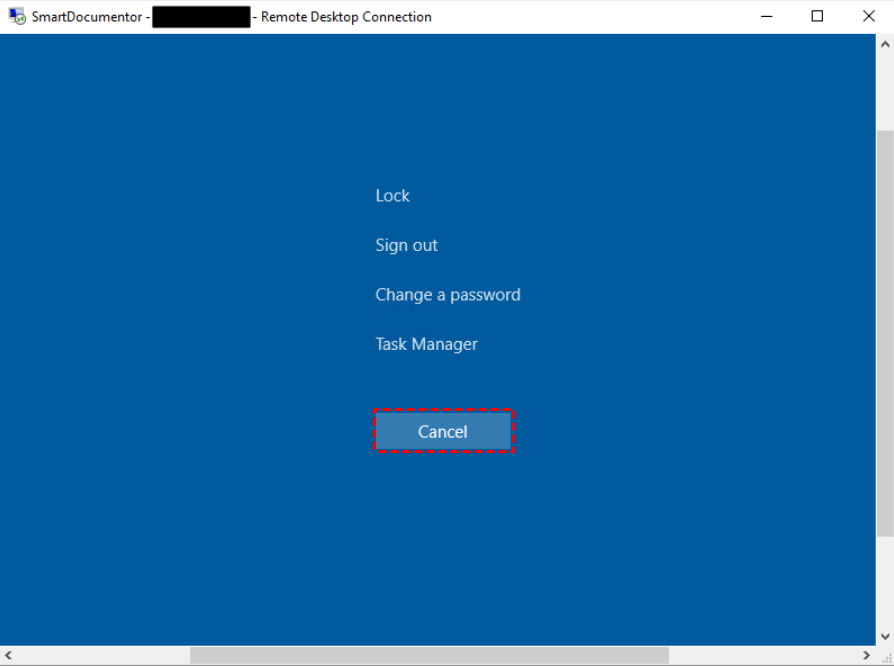
- While on the black screen, press Ctrl + Alt + End on your keyboard.
- This sends a “Ctrl + Alt + Del” command to the remote server.
- A menu will appear. Click Sign out (or Log off).
- Reconnect to your RDP. The desktop should load normally.
Method 2: Disable Persistent Bitmap Caching
This is the most permanent fix. The RDP client tries to save images from the server to speed things up, but sometimes this cache gets corrupted, causing the black screen.
- Open the Remote Desktop Connection app on your PC.
- Click on Show Options (bottom left).
- Go to the Experience tab.
- Uncheck the box that says Persistent bitmap caching.
- Click Connect.
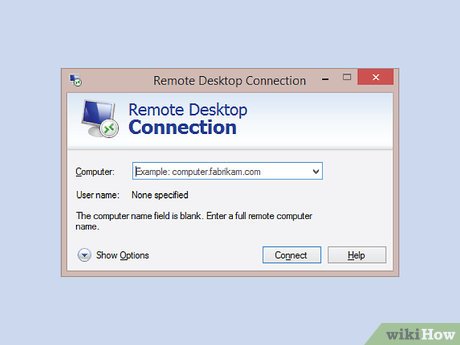
This forces the RDP client to reload the fresh display data every time, eliminating the black screen error.
Method 3: Check Your Server Resources
If the above methods didn’t help, your VPS might be “choking.” Windows Server (especially 2019/2022) requires a minimum amount of RAM to draw the desktop interface. If your provider is stuffing too many users on one machine, your session won’t load.
Get a Server That Just Works
Stop wasting time troubleshooting. At WPressly, we offer high-performance Windows VPS solutions designed for stability.
- Dedicated Resources: No noisy neighbors stealing your RAM.
- NVMe Storage: Lightning-fast boot and load times.
- 99.9% Uptime: Your workspace is ready when you are.